
How to Use the Bar Chart Maker
This bar chart maker lets you create a simple, clustered, or stacked bar chart from your own data.
To create a chart:
- Choose the type of bar chart you want to create: Simple, Clustered, or Stacked.
- Enter the category names in the Categories field.
- Enter the data values for each series.
- Click Create Chart.
- Use the customization options to display the data as counts or percentages, show values directly on the bars, or change the chart title and axis labels.
- Click Download Chart as PNG if you want to save the finished graph.
Tip. When entering the data, you should separate category labels and values using commas, semicolons, or line breaks. The number of values in each series must match the number of categories.
What Is a Bar Chart?
A bar chart is a graph used to compare numerical values across categories. Each category is represented by a rectangular bar. The height of each bar corresponds to the value associated with that category.
For example, a teacher could use a bar chart to compare the number of students receiving grades A, B, C, and D.
Bar charts work particularly well for categorical data because differences in bar height are easy to compare.
Parts of a Bar Chart
Most bar charts contain several basic elements. These include:
- Categories. The categories identify what each bar represents. They normally appear along the horizontal axis in a vertical bar chart.
- Values. The numerical values determine the height of each bar. They may represent counts, percentages, frequencies, sales, scores, or other measurements.
- X-Axis. The horizontal axis usually contains the category names. You can add an X-axis label when it helps explain what the categories represent.
- Y-Axis. The vertical axis shows the numerical scale used to measure bar height. When percentages are selected in this tool, the percentage scale runs from 0% to 100%.
- Legend. A legend identifies the different data series in a clustered or stacked chart. For example, if you compare Male and Female responses across several categories, the legend shows which color represents each group.
How to Create a Bar Chart
The steps for creating a bar chart vary slightly depending on whether you need a simple, clustered, or stacked bar chart. The main difference is the number of data series you have and how you want to compare them.
The examples below show how to identify the appropriate chart and create it using the bar chart maker.
1) Simple Bar Chart
A simple bar chart contains only one data series. Each category has one bar, and the height of the bar represents its value.
Example 1
A university surveyed students to determine their preferred extracurricular club. The results are shown below.
| Club | Number of Students |
|---|---|
| Science | 28 |
| Sports | 35 |
| Music | 22 |
| Drama | 15 |
Create a bar chart to display the students’ club preferences.
Solution
The dataset contains only one data series, Number of Students, across four categories. Therefore, a simple bar chart is appropriate.
To create the chart using the bar chart maker:
- Select Simple.
- Enter Science, Sports, Music, Drama in the Categories field.
- Enter 28, 35, 22, 15 in the data input field.
- Enter a series name such as Students.
- Click Create Chart.
- Add a chart title or axis labels if required.
The following simple bar chart will be generated.

From the chart, we can see that the Sports bar is the tallest because Sports has the highest number of students.
If you want to display the responses as proportions instead of counts, select Percentages. The tool will automatically convert each club frequency into a percentage of the total number of students and display the chart.
2) Clustered Bar Chart
A clustered bar chart, also called a grouped bar chart, places two or more bars side by side within each category. It is appropriate when you want to compare multiple groups or data series across the same categories.
Example 2
A university records the number of students enrolled in three departments in 2025 and 2026.
| Department | 2025 | 2026 |
|---|---|---|
| Science | 42 | 48 |
| Business | 35 | 41 |
| Arts | 29 | 34 |
Create an appropriate bar chart to compare enrollment between 2025 and 2026 across the three departments.
Solution
The data contain two series, 2025 and 2026, measured across the same departments. Since the goal is to compare the two years within each department, a clustered bar chart is appropriate.
To create the clustered bar chart using the maker:
- Select Clustered.
- Enter Science, Business, Arts in the Categories field.
- Enter 2025 as the first series name and enter 42, 35, 29 as its values.
- Enter 2026 as the second series name and enter 48, 41, 34 as its values.
- Click Create Chart.
- Add a suitable title and axis labels if needed.
The chart will display two bars side by side for each department, as shown below. This allows you to compare enrollment between 2025 and 2026 within each department and across departments.

You can also select Percentages if you want each year’s value to be shown as a percentage of the total enrollment within that department.
3) Stacked Bar Chart
A stacked bar chart combines two or more data series within the same bar. Each section represents one component, while the total height of the bar represents the combined value for that category.
Example 3
A retail company records its online and in-store sales for four quarters.
| Quarter | Online Sales | In-Store Sales |
|---|---|---|
| Q1 | 35 | 65 |
| Q2 | 45 | 70 |
| Q3 | 55 | 75 |
| Q4 | 62 | 80 |
Create a bar chart that shows both the total sales for each quarter and the contribution of each sales channel.
Solution
The data contain two components, Online Sales and In-Store Sales, for each quarter. Since the question asks you to show both the total and how each component contributes to it, a stacked bar chart is appropriate.
To create the chart:
- Select Stacked.
- Enter Q1, Q2, Q3, Q4 in the Categories field.
- Enter Online Sales as the first series name and enter 35, 45, 55, 62 as its values.
- Enter In-Store Sales as the second series name and enter 65, 70, 75, 80 as its values.
- Click Create Chart.
- Add a chart title and axis labels if required.
The following stacked bar chart will be displayed.
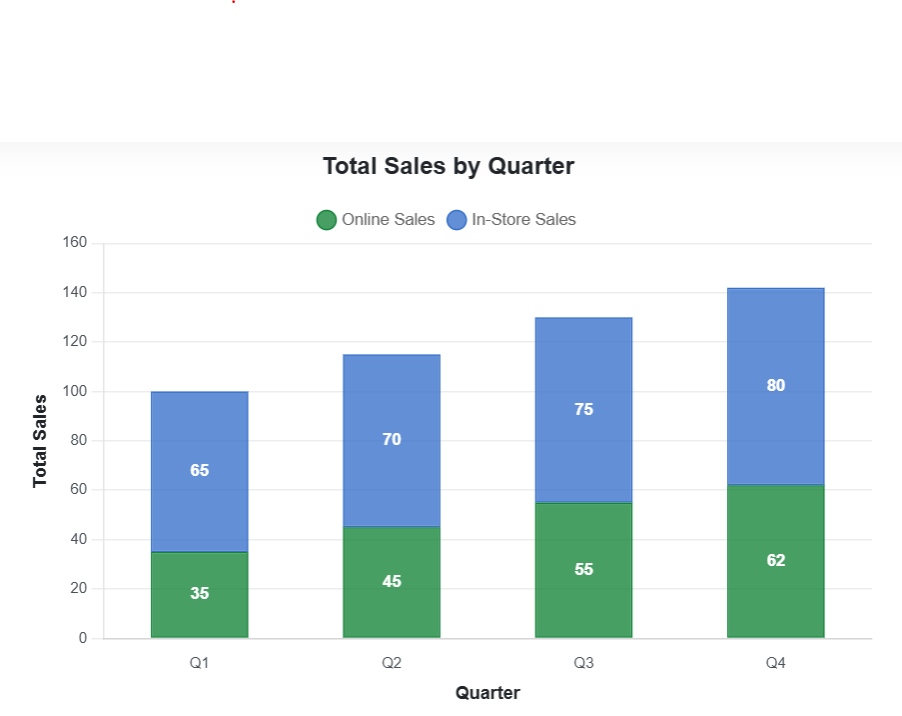
From the stacked bar chart, we see that each quarter appears as one bar divided into Online Sales and In-Store Sales sections. The full height of each bar represents total sales for that quarter.
If the goal is to compare the relative contribution of online and in-store sales rather than the actual totals, select Percentages. The tool will convert the graph into a 100% stacked bar chart, where every bar represents 100% of the quarterly sales.
How to Read a Bar Chart
To read a bar chart:
- Check the chart title to understand what the graph represents.
- Look at the categories along the horizontal axis.
- Check the scale on the vertical axis.
- Compare the heights of the bars.
- Use the legend when the chart contains several data series.
- Check any values shown directly on the bars.
A taller bar represents a larger value when the bars use the same scale. For clustered charts, compare the bars within each category as well as across categories. However, when working with stacked charts, you should compare both the total height of each bar and the size of the individual sections.
Counts vs Percentages in a Bar Chart
You can display the entered values as either counts or percentages. Choose Counts when you want the chart to show the original numerical values. However, when relative proportions are more useful than the original values, use percentages instead.
Bar Chart vs Histogram
A bar chart and a histogram may look similar, but they are used for different types of data. The table below provides a quick summary of the key differences.
| Bar Chart | Histogram |
|---|---|
| Used mainly for categorical data | Used for quantitative data grouped into intervals |
| Bars represent separate categories | Bars represent numerical intervals or bins |
| Bars are normally separated | Bars normally touch |
| Category order can often be changed | Bin order follows the numerical scale |
For example, a bar chart could compare the number of students in different degree programs. On the other hand, a histogram would show how numerical values such as student ages or test scores are distributed across intervals.
Bar Chart vs Scatter Plot
A bar chart compares values across categories. On the other hand, a scatter plot is more appropriate when you have two numerical variables and want to examine their relationship.
If you have paired numerical data, use our Scatter Plot Maker to plot the values and optionally add a line of best fit.
When to Use a Bar Chart
Use a bar chart when you need to compare values across categories, rank items, show frequencies, or compare a small number of time periods.
Common situations include:
- Comparing categories: Use a bar chart to see which group has a larger or smaller value, such as comparing sales across different products or enrollment across university departments.
- Ranking items: Arrange categories from highest to lowest or lowest to highest to make differences easy to see, such as ranking regions by population or products by revenue.
- Showing frequencies: Display how often something occurs within distinct categories, such as survey responses, attendance counts, or the number of students in different grade categories.
- Comparing a few time periods: Use a bar chart when you want to compare values across a small number of periods, such as quarterly sales or enrollment over several years.
A bar chart works best when the categories are distinct, and the main goal is to compare their values clearly.
Use a clustered bar chart when you want to compare two or more groups across the same categories. However, if each category contains several components, and you want to show how those components contribute to the total, use a stacked bar chart
Frequently Asked Questions
A bar chart maker is an online tool used to turn categorical data and numerical values into a bar graph. This tool lets you create simple, clustered, and stacked bar charts, display counts or percentages, show values on the bars, and download the finished graph as a PNG.
Yes. Select Clustered, enter your category labels, and add at least two data series. The tool will place the bars side by side within each category.
Yes. Select Stacked and enter two or more data series. The values will be stacked within each category.
Yes. Create a stacked chart and then select Percentages. Each category will be converted to percentages so that the sections of every bar total 100%.
Yes. Select Percentages in the Customize Chart section. The tool will automatically calculate and display the appropriate percentages based on the type of bar chart.
Yes. The Clustered and stacked charts option allows you to add additional series using the Add Series button.
No. Bar charts usually compare separate categories, while histograms show the distribution of numerical data across continuous intervals or bins.
