
How to Use the T-Test Calculator
This calculator allows you to perform a one-sample t-test, independent samples t-test, or paired samples t-test from one place. You can enter raw data, use summary statistics, or upload a dataset and select the variables you want to analyze.
To use the calculator:
- Choose the t-test you want to perform.
- Select how you want to enter your data.
- Enter the required values or upload your dataset.
- Set the alternative hypothesis and significance level, α.
- Choose the number of decimal places and click Calculate.
The calculator instantly returns the t statistic, p-value, critical t value, and statistical decision on whether the results are statistically significant or not. It further organizes the results into tables similar to those obtained in SPSS. You can copy all the tables at once and paste them directly into Microsoft Word. Below the tables, you’ll get an APA-formatted result, which you can copy-paste into your work.
Which T-Test Should You Choose?
The calculator supports one-sample t-test, independent samples t-test, and paired samples t-test. The correct option depends on the type of data you have and what you want to compare.
Here’s how to choose the right statistical test.
- One-sample t-test. This is appropriate when you want to compare one sample mean with a known or hypothesized population value, especially when the population standard deviation is unknown. However, if you need a specialized tool with steps, you may use the one-sample t-test calculator.
- Independent samples t-test. Use this option when you want to test whether there is a significant mean difference between two independent (unrelated) groups. It supports both Welch’s t-test and the two-sample t-test for equal variances.
- Paired Samples t-test. Choose the paired t-test option when you want to compare the mean of two related measurements such as before-and-after scores. However, if you want a custom tool that also shows you how to perform the test manually, our paired t-test calculator may be helpful.
Tip. The Independent Samples t-Test option supports both versions of the independent t-test. It calculates the pooled two-sample t-test when equal variances can be assumed and Welch’s t-test when equal variances cannot be assumed. If you upload or enter raw data, the calculator automatically performs Levene’s test and identifies the row you should use. This gives you output arranged similarly to what you would see when running an independent samples t-test in SPSS.
Choose How to Enter Your Data
The calculator allows you to enter the data in several ways depending on what information you already have.
Raw Data
Choose Raw Data when you have the individual observations. You can enter the values manually or copy and paste them directly from Excel, Google Sheets, or another spreadsheet.
For an independent samples t-test, enter the observations for the two groups separately. However, for a one-sample t-test, enter the sample observations together with the hypothesized population mean.
Summary Statistics
Choose Summary Statistics when the individual observations are unavailable, but you already know the sample size, mean, and standard deviation. For an independent samples t-test, enter n, mean, and standard deviation for each group. However, for a one-sample t-test, enter n, mean, standard deviation, and the hypothesized population mean.
Paired Data
The paired samples t-test gives you three ways to enter the data.
- If you have the original matched observations, select Paired Observations and enter the two columns.
- If you have already calculated the difference for each pair, select Differences Only and enter the pairwise differences directly.
- However, if you only have summary statistics, enter the number of pairs, mean difference (d̄), and standard deviation of the differences (sᵈ). For paired summary data, the standard deviation should be the standard deviation of the pairwise differences rather than the separate standard deviations of the two conditions.
Upload Dataset
You can also upload a CSV, TXT, XLS, or XLSX dataset. Once the file is uploaded, the calculator reads the column headings and allows you to select the variables required for the test.
- For an independent samples t-test, select the dependent variable and grouping variable, then choose the two groups you want to compare.
- For a paired samples t-test, you can select two matched columns or a single column containing the pairwise differences.
This option is useful when working with larger datasets because you do not have to copy and paste hundreds of observations manually.
SPSS-Style T-Test Output
The calculator does more than return a t-statistic and p-value. It organizes the results into tables similar to those commonly obtained when running t-tests in SPSS.
The output includes descriptive statistics, the main t-test results, and effect sizes. You can also copy all the tables and paste them into Microsoft Word as editable tables.
1) Independent Samples T-Test Output
For an independent samples t-test, the calculator generates outputs similar to those produced by SPSS as shown below:
Descriptive Statistics

Independent Samples t-Test

Effect Sizes

Want to report the outputs in APA? The calculator also provides an APA report for your test. For instance, for the above outputs, the calculator gives the following report:
An independent-samples t-test was performed to determine whether test scores differed between Control and Treatment. Results showed that Treatment (M = 78.00, SD = 2.58) had significantly higher test scores than Control (M = 72.10, SD = 2.77), t(18) = -4.93, p < .001, 95% CI [-8.41, -3.39], Cohen’s d = -2.20.
2) Paired Samples T-Test Output
Once you run a paired samples t-test using this calculator, you get the following outputs:

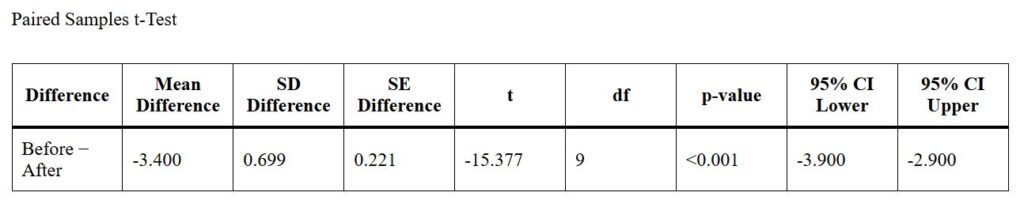

The calculator will also give an APA report for the same outputs, which you can paste in your work. For the above outputs, the APA report will be:
A paired-samples t-test was performed to determine whether test scores differed between Before and After. Results showed that test scores was significantly higher in After (M = 73.00, SD = 2.79) than in Before (M = 69.60, SD = 3.20), t(9) = -15.38, p < .001, 95% CI [-3.90, -2.90], Cohen’s dᶻ = -4.86.
3) One-Sample T-Test Output
After performing a one-sample t-test with this calculator, the outputs will be as follows:



The calculator will also produce an APA report for the one-sample t-test similar to the following:
A one-sample t-test was performed to determine whether the mean test scores differed from the hypothesized value of 70. Results showed that the sample mean (M = 72.58, SD = 2.78) was significantly higher than 70, t(11) = 3.22, p = .008, 95% CI [0.82, 4.35], Cohen’s d = 0.93.
Understanding the T-Test Results in the Answer box
The answer box gives you the main hypothesis-test result immediately, while the tables provide the additional statistics needed for interpretation and reporting.
- T Statistic. The t statistic shows the observed difference relative to its standard error. The sign of t indicates the direction of the difference based on the subtraction order used in the test. A negative t statistic does not mean the result is incorrect or insignificant.
- P-Value. The answer box will show you the p-value. It will then compare it with the significance level, α, and tell you whether the result is statistically significant. If you already have a t statistic and degrees of freedom and only need the corresponding probability, use the P-Value From T Calculator.
- Critical T Value. The calculator also reports the critical t value for the selected significance level and alternative hypothesis. This helps you also to make decisions about the hypotheses using the critical value approach. If you only need the cutoff value, use the T Critical Value Calculator.
Copy the T-Test Tables to Word
Once the test has been calculated, click Copy Tables to copy the complete statistical output. The descriptive statistics, t-test results, and effect-size tables are copied together and can be pasted into Microsoft Word as editable tables.
You can then keep the tables required for your assignment, research paper, thesis, or dissertation and delete any output you do not need.
Tip. For an independent samples t-test, the copied output also retains the Levene’s test section and the equal variances assumed and equal variances not assumed rows.
APA-Formatted T-Test Result
The calculator also generates an APA-style result using the variable, group, or condition names entered in the calculator. Depending on the test, the APA report includes the relevant means and standard deviations, t statistic, degrees of freedom, p-value, confidence interval, and effect size.
Click Copy APA Result to copy the statement.
You should still read the generated result before using it in an assignment, thesis, dissertation, or journal manuscript. The calculator formats the statistical result, but the final wording should reflect the exact research question and context of your study.
Frequently Asked Questions
A t-test calculator is an online tool that performs a statistical test for one population mean or a difference between two means. This calculator supports one-sample, independent samples, and paired samples t-tests and returns the t statistic, p-value, degrees of freedom, critical value, confidence interval, effect size, and statistical decision. It produces outputs similar to the ones produced by IBM SPSS software.
You can use the calculator to perform the supported one-sample, independent samples, and paired samples t-tests and obtain output arranged similarly to commonly used SPSS t-test tables. However, this is a standalone t-test calculator and does not replace the wider data-management and statistical-analysis features available in SPSS.
Yes. The Independent Samples t-Test option calculates both the pooled two-sample t-test and Welch’s t-test. The pooled result appears under Equal variances assumed, while the Welch result appears under Equal variances not assumed.
Yes. You can copy raw observations from Excel or Google Sheets and paste them directly into the data fields. For larger datasets, you can upload a CSV, TXT, XLS, or XLSX file instead.
Yes. Select Differences Only and enter the pairwise differences directly. The calculator will use those values to calculate the mean difference, standard deviation of the differences, standard error, t statistic, p-value, confidence interval, and effect size.
Yes. After calculating the test, the calculator generates an APA-formatted result that includes the relevant descriptive and inferential statistics. Click Copy APA Result to copy it.
